Epson L3150 Driver Download Guide
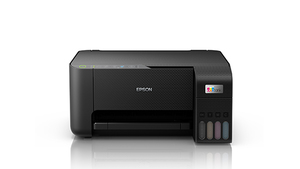
Epson L3150 Printer Overview
The Epson EcoTank L3150 is a compact all-in-one printer designed for cost-effective home and office use. Featuring Epson’s innovative cartridge-free ink tank system, it offers ultra-low-cost printing with high-yield ink bottles. The printer supports wireless connectivity, allowing users to print from smartphones, tablets, and laptops via Wi-Fi or Wi-Fi Direct. With borderless printing up to A4 size, a user-friendly interface, and sharp print quality, the L3150 is ideal for both documents and photos. Its compact design saves space, while Epson’s Heat-Free Technology ensures energy efficiency and consistent performance for everyday printing, scanning, and copying needs.
Epson L3150 Driver Download for Windows – Complete Guide
The Epson EcoTank L3150 is a compact, all-in-one ink tank printer designed for high-volume printing with extremely low running costs. To ensure full compatibility with your Windows operating system and unlock all features of the printer, installing the correct driver is essential. This guide will walk you through the complete process of downloading and installing the Epson L3150 driver on your Windows PC or laptop.
Why You Need the Correct Epson L3150 DriverThe printer driver is the software that allows your computer to communicate with the printer. Using the official Epson driver ensures that your L3150 supports all functions such as scanning, wireless printing, maintenance tools, and more. Without the proper driver, your printer may not work correctly or may not be recognized at all by Windows.
Step 1: Visit the Official Epson WebsiteTo begin, go to the official Epson website. In the search bar, type “Epson L3150” and select the correct model from the results. You will be redirected to the printer’s support page.
Step 2: Choose Your Windows Operating SystemOn the support page, scroll down to the “Drivers & Downloads” section. Use the drop-down menu to select your version of Windows (Windows 11, 10, 8.1, or 7 – 32-bit or 64-bit). This ensures compatibility and stability.
Step 3: Download the Driver PackageOnce your OS is selected, a list of available drivers will appear. Locate the latest “Printer Driver” or “Driver and Utilities Combo Package” and click the Download button. Save the file to a known location on your PC, such as the Downloads folder or Desktop.
Step 4: Install the DriverAfter the download is complete, double-click the installation file (.exe) to begin the setup. Follow the on-screen instructions, agree to the license terms, and proceed with the installation. The setup wizard will automatically detect your printer via USB or Wi-Fi, depending on your setup method.
Step 5: Connect Your PrinterOnce the installation is complete, connect your Epson L3150 to your PC. If you’re using USB, plug in the cable and turn the printer on. For wireless setup, ensure both your printer and PC are connected to the same Wi-Fi network and follow the on-screen steps to complete the connection.
Tips for Smooth Installation
- Disable antivirus temporarily if the installer is blocked.
- Restart your computer after installation to ensure all features are properly configured.
- Use the Epson Smart Panel or Epson Scan software for easier scanning and printing tasks.
ConclusionInstalling the correct Epson L3150 driver on your Windows device is essential for smooth and reliable printing. Always download drivers from the official Epson website to ensure safety and compatibility. By following this guide, you’ll have your Epson L3150 ready for all your printing and scanning needs in just a few minutes.
Epson L3150 Driver Download for Mac – Complete Guide
The Epson EcoTank L3150 is a compact, efficient, and user-friendly all-in-one printer, designed to offer ultra-low-cost printing for homes and small offices. If you’re using a Mac, installing the correct printer driver is essential to access all features such as scanning, wireless printing, and ink level monitoring. This guide will walk you through the steps to download and install the Epson L3150 driver on macOS.
Why the Right Driver MattersmacOS requires specific drivers to ensure seamless communication with your Epson L3150 printer. The official driver allows you to use all printer features efficiently, without errors or compatibility issues. Using outdated or incorrect drivers may lead to printing errors, scanning failures, or limited functionality.
Step 1: Visit Epson’s Official Support WebsiteGo to the official Epson website. In the search bar, type “Epson L3150” and click on the correct model from the dropdown suggestions. You’ll be redirected to the product’s support page.
Step 2: Select Your macOS VersionOn the support page, scroll down to the “Drivers & Downloads” section. Use the drop-down menu to select your macOS version (e.g., macOS Sonoma, Ventura, Monterey, Big Sur, or earlier). This ensures you only download compatible drivers for your system.
Step 3: Download the Mac DriverFind the recommended driver package under the “Drivers and Utilities” section. Click the Download button next to the latest available version. The driver package will start downloading automatically to your Mac.
Step 4: Install the DriverOnce downloaded, open the .pkg file and follow the on-screen instructions to install the driver. During installation, macOS may prompt you to allow the installer access through the System Settings (Security & Privacy section). Grant the necessary permissions and complete the setup process.
Step 5: Connect the PrinterYou can now connect your Epson L3150 to your Mac using one of the following methods:
- USB Connection: Plug in the USB cable and power on the printer. Your Mac will detect and configure the device automatically.
- Wi-Fi Connection: Make sure the printer and your Mac are connected to the same Wi-Fi network. Use the Epson Smart Panel app or Epson Printer Utility to complete the wireless setup.
Tips for macOS Users
- Always download drivers from the official Epson website to avoid compatibility issues.
- Restart your Mac after installation to ensure all components are loaded correctly.
- Use the Epson Scan 2 utility for high-quality scanning features on macOS.
ConclusionInstalling the correct Epson L3150 driver on your Mac ensures full access to all printer features, from wireless printing to scanning. With this simple setup guide, you can get your printer working smoothly in minutes. Stay up-to-date by occasionally checking Epson’s support page for the latest driver updates.
Key Features at a Glance
- All-in-One Functionality: Print, scan, and copy from a single compact device.
- Cartridge-Free Printing: Comes with integrated ink tanks and high-yield ink bottles for ultra-low-cost printing.
- Wireless Printing: Supports Wi-Fi, Wi-Fi Direct, and mobile printing via Epson Smart Panel and Epson iPrint apps.
- Compact Design: Sleek, space-saving body ideal for home or small office setups.
- High Page Yield: Print up to 4,500 pages (black) and 7,500 pages (color) with one set of ink bottles.
- Borderless Photo Printing: Print borderless photos and documents up to A4 size.
- Energy Efficient: Powered by Epson’s Heat-Free Technology for low power consumption and consistent output.
- Easy Refilling: Spill-free and error-free ink refilling with uniquely keyed bottles for each color.
Wireless Setup for Epson L3150
Setting up your Epson L3150 printer for wireless printing allows you to print from your computer, smartphone, or tablet without any physical connection. Follow these simple steps to complete the wireless setup:
Power on the Printer: Ensure the printer is turned on and ready.
Activate Wi-Fi Mode: Press and hold the Wi-Fi button on the printer until the Wi-Fi indicator starts blinking. This enables Wi-Fi setup mode.
Download Epson Smart Panel App: Install the Epson Smart Panel app from the Google Play Store or Apple App Store on your mobile device.
Connect to Wi-Fi: Open the app and follow the on-screen instructions. The app will detect the printer and prompt you to select your Wi-Fi network and enter the password.
Complete Setup: Once the printer connects to the Wi-Fi network, the indicator light will stop blinking and remain steady.
Your Epson L3150 is now connected to your wireless network and ready for use. Ensure your devices are connected to the same Wi-Fi for smooth operation. With wireless printing, you can enjoy the convenience of printing anytime from anywhere in your home or office.